

AI Layouter: Turn Plain Text into Polished Masterpieces in Seconds
Stop wrestling with formatting. Start impressing your audience.
You have powerful ideas, but presenting them professionally takes hours of tedious formatting. Whether you are creating a business report, an eBook, or a project proposal, the visual presentation determines how your work is judged.
AI Layouter is your instant design partner. It transforms raw text into stunning, professional-grade PDFs automatically. We bridge the gap between your content and professional design, eliminating the need for expensive software or graphic design skills.
Why Choose AI Layouter?
-
Design Intelligence at a Click: Our AI analyzes your text structure to apply optimal typography, spacing, and hierarchy. It doesn’t just convert; it designs.
-
Focus on Writing, Not Margins: You do the thinking; we do the shrinking, spacing, and styling. Reclaim the hours you used to spend fighting with page breaks and image alignment.
-
Instant Authority: A poorly formatted document looks amateur. A polished PDF commands respect. Elevate your brand image instantly with layouts that look like they cost hundreds of dollars to produce.
-
Seamless Integration: Simply paste your text, select a style mood, and export. It is the fastest workflow from “Draft” to “Done.”
Perfect For:
-
Consultants & Freelancers delivering high-value proposals.
-
Authors looking to self-publish eBooks without formatting headaches.
-
Students & Academics needing thesis papers that stand out.
-
Business Professionals creating reports that get read, not ignored.
Legal:
- Includes 100.000 characters per Month
Your words deserve to look as good as they sound.
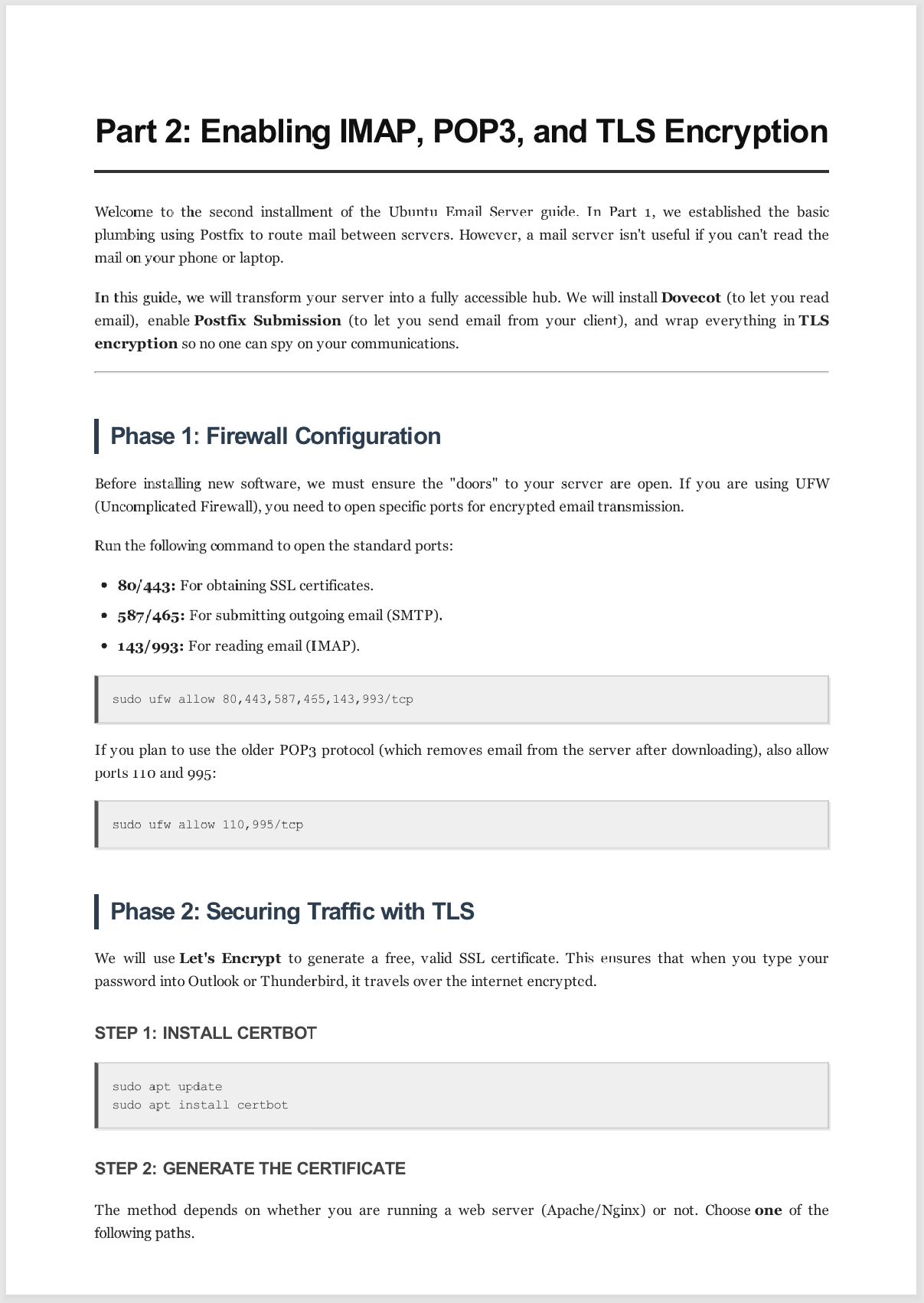
Input for the Example:
Part 2: Enabling IMAP, POP3, and TLS Encryption
Welcome to the second installment of the Ubuntu Email Server guide. In Part 1, we established the basic
plumbing using Postfix to route mail between servers. However, a mail server isn’t useful if you can’t read the
mail on your phone or laptop.
In this guide, we will transform your server into a fully accessible hub. We will install Dovecot (to let you read
email), enable Postfix Submission (to let you send email from your client), and wrap everything in TLS
encryption so no one can spy on your communications.
Phase 1: Firewall Configuration
Before installing new software, we must ensure the “doors” to your server are open. If you are using UFW
(Uncomplicated Firewall), you need to open specific ports for encrypted email transmission.
Run the following command to open the standard ports:
80/443: For obtaining SSL certificates.
587/465: For submitting outgoing email (SMTP).
143/993: For reading email (IMAP).
sudo ufw allow 80,443,587,465,143,993/tcp
If you plan to use the older POP3 protocol (which removes email from the server after downloading), also allow
ports 110 and 995:
sudo ufw allow 110,995/tcp
Phase 2: Securing Traffic with TLS
We will use Let’s Encrypt to generate a free, valid SSL certificate. This ensures that when you type your
password into Outlook or Thunderbird, it travels over the internet encrypted.
STEP 1: INSTALL CERTBOT
sudo apt update
sudo apt install certbot
STEP 2: GENERATE THE CERTIFICATE
The method depends on whether you are running a web server (Apache/Nginx) or not. Choo



Reviews
There are no reviews yet.